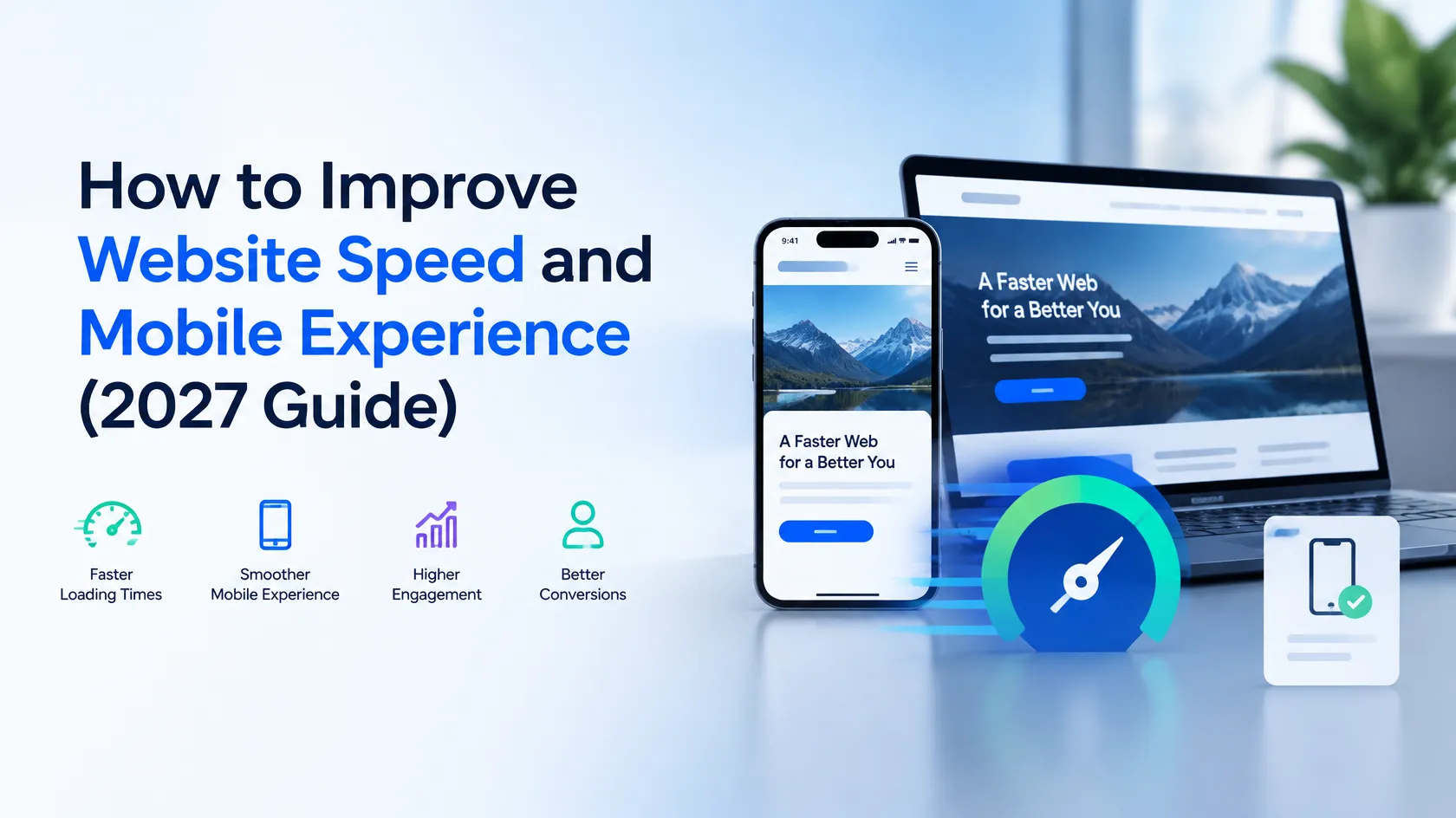


Website speed and mobile experience have become essential parts of building a successful website. Whether you run a personal blog, business website, online store, portfolio, or digital marketing platform, visitors expect your website to load quickly and work smoothly on every device.
Imagine someone visiting your website from a smartphone. They click your page from Google, but it takes several seconds to load. The images appear slowly, buttons do not respond immediately, and the layout looks confusing. What will they do? Most likely, they will leave your website and visit another result.
This is why Website Speed Optimization is so important in 2027. A fast website provides a better user experience, makes browsing easier, and helps visitors find the information they need without unnecessary delays.
Mobile experience is equally important. People use smartphones and tablets to browse websites, read articles, shop online, watch videos, and interact with businesses. If your website looks perfect on a desktop but becomes difficult to use on a mobile phone, you could lose valuable visitors.
The good news is that improving website performance does not always require advanced programming knowledge. If you use WordPress, there are several practical ways to improve loading speed, optimize images, reduce unnecessary scripts, improve mobile responsiveness, and monitor your website’s performance.
In this complete guide, you will learn how to improve website speed and mobile experience using practical techniques, WordPress optimization methods, and Google’s recommended performance metrics.
Whether you are a beginner, blogger, website owner, or WordPress developer, these strategies will help you build a faster, more responsive, and user-friendly website.
Table of Contents
- What Is Website Speed Optimization?
- Why Website Speed Matters in 2027
- How Website Speed Affects SEO
- Understanding Google’s Core Web Vitals
- How to Check Your Website Speed
- Choose a Fast and Reliable WordPress Hosting Provider
- Use a Lightweight WordPress Theme
- Optimize Images for Faster Loading
- Install a Reliable WordPress Caching Plugin
- Minify CSS, JavaScript, and HTML
- Reduce Unnecessary WordPress Plugins
- Use a Content Delivery Network (CDN)
- Enable Browser Caching and GZIP Compression
- Improve Your Website’s Mobile Experience
- Optimize Fonts and Third-Party Scripts
- Improve WordPress Database Performance
- Use Lazy Loading for Images and Videos
- Optimize Your Website’s Homepage
- Improve Navigation and Mobile User Experience
- Common Website Speed Optimization Mistakes
- A Practical WordPress Speed Optimization Checklist
- How to Monitor Website Performance
- Frequently Asked Questions
- Final Thoughts
1. What Is Website Speed Optimization?
Website Speed Optimization is the process of improving how quickly a website loads and how efficiently visitors can interact with its content.
When someone opens a website, their browser needs to download and process different resources. These resources may include HTML files, CSS stylesheets, JavaScript files, images, fonts, videos, and other website elements.
If these resources are unnecessarily large or take too long to load, the website may feel slow.
The purpose of website optimization is to reduce unnecessary loading time, improve resource delivery, and make important content available to visitors as quickly as possible.
For example, consider two websites.
- Website A loads its main content quickly, displays optimized images, and responds smoothly to clicks.
- Website B takes several seconds to display its content, uses large images, and contains unnecessary animations.
Even if both websites publish equally useful information, visitors will generally have a better experience on Website A.
Website performance depends on several factors, including:
- Web hosting quality and server response time.
- Website theme and code quality.
- Image and video file sizes.
- CSS and JavaScript resources.
- Caching configuration.
- Database performance.
- CDN configuration.
- Mobile responsiveness.
- Third-party scripts and external services.
Improving these elements together creates a better experience for website visitors.
It is important to understand that website speed is not only about achieving a high score in a testing tool. Your main objective should be to make your website genuinely fast and easy to use.
2. Why Website Speed Matters in 2027
Website visitors expect information quickly. They do not want to wait unnecessarily for a page to open, an image to appear, or a button to respond.
A slow website can create frustration and make visitors question the quality of your website or business.
Here are some important reasons why website performance deserves attention in 2027.
Better User Experience
User experience refers to how visitors interact with your website and how easily they can complete their goals.
A fast website allows visitors to browse articles, explore products, open different pages, and interact with website features without unnecessary delays.

For example, if you operate a blog, visitors should be able to open your articles quickly and read them comfortably on both desktop and mobile devices.
Improved Search Experience
Google aims to provide useful search results that satisfy users. Page experience is one part of its broader search ranking considerations.
Google recommends providing a good overall page experience, including good Core Web Vitals, secure browsing, mobile-friendly content, and an accessible layout.
However, website speed alone does not guarantee higher Google rankings. High-quality content, relevance, website authority, and many other factors also matter.
Better Mobile Visitors Experience
A significant amount of website browsing happens on smartphones. Mobile visitors may use slower connections, smaller screens, and devices with less processing power than desktop computers.
A properly optimized website makes browsing easier even under these conditions.
More Comfortable Shopping Experience
For eCommerce websites, loading speed and mobile usability can influence how easily customers explore products and complete purchases.
Slow product pages, unresponsive buttons, and complicated checkout forms can create unnecessary obstacles.
Better Website Engagement
When pages load efficiently and navigation works properly, visitors can explore more of your website.
This does not mean that speed automatically increases engagement. However, removing technical problems makes it easier for visitors to interact with useful content.
3. How Website Speed Affects SEO
Search Engine Optimization (SEO) is the process of improving your website so search engines can understand its content and show relevant pages in search results.
Website performance supports SEO by helping provide a better experience for visitors.
Google’s ranking systems consider page experience alongside many other factors. Core Web Vitals are part of Google’s page experience guidance, but achieving perfect performance scores does not guarantee first-page rankings.
Mobile-First Indexing
Google primarily uses the mobile version of website content for indexing and ranking.
This means that your mobile website should contain the important content, headings, images, internal links, and structured information available on your desktop website.
If important content is missing from the mobile version, Google may not understand your page as intended.
For a better mobile SEO strategy:
- Use a responsive WordPress theme.
- Keep important content accessible on mobile devices.
- Make sure headings are visible and properly structured.
- Use descriptive image alt text.
- Avoid blocking important CSS and JavaScript resources.
- Keep the same important SEO information across devices.
Responsive web design is Google’s recommended approach because it allows one website to adapt to different screen sizes.
Better Page Experience
Visitors should be able to access your content without excessive waiting, unexpected layout changes, or frustrating interactions.
A good page experience combines performance, usability, accessibility, and security.
Improved Website Accessibility
Performance optimization can also support accessibility.
For example, a simple website structure, readable typography, properly labeled buttons, and optimized content can make browsing easier for people using different devices and assistive technologies.
Remember that SEO is not about making your website fast for Google alone. It is about making your website useful for real people.
4. Understanding Google’s Core Web Vitals
Before starting technical optimization, you should understand Google’s Core Web Vitals.
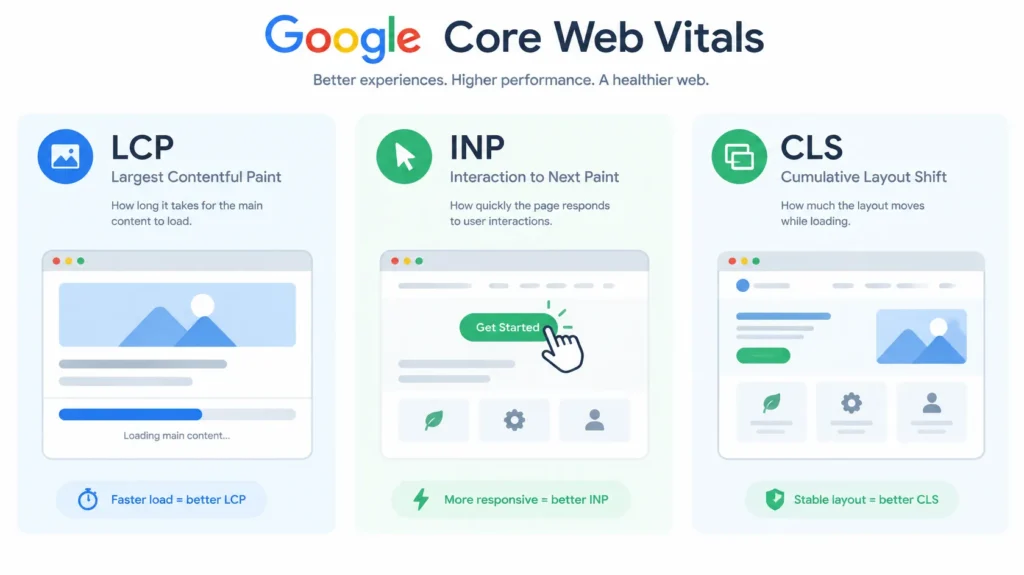
Core Web Vitals are performance metrics that measure three important aspects of user experience:
- Loading performance.
- Interactivity.
- Visual stability.
Google currently focuses on three main metrics: Largest Contentful Paint (LCP), Interaction to Next Paint (INP), and Cumulative Layout Shift (CLS).
Largest Contentful Paint (LCP)
LCP measures how quickly the largest visible content element appears on the screen.
This element could be:
- A large featured image.
- A hero section.
- A main heading.
- A large banner.
- A significant block of text.
A good LCP score is 2.5 seconds or less.
If your website’s main image takes too long to load, visitors may feel that the entire page is slow.
How to improve LCP:
- Use fast and reliable hosting.
- Optimize the main featured image.
- Reduce server response time.
- Avoid unnecessary redirects.
- Use a CDN where appropriate.
- Reduce render-blocking CSS and JavaScript.
- Prioritize loading important above-the-fold content.
One important detail: do not lazy-load your main LCP image if it is visible immediately when the page opens. Prioritize its loading instead.
Interaction to Next Paint (INP)
INP measures how quickly a page responds visually to user interactions throughout a visit.
For example, when a visitor clicks a menu, opens a dropdown, or presses a button, the website should respond without noticeable delay.
A good INP score is 200 milliseconds or less.
How to improve INP:
- Reduce unnecessary JavaScript.
- Remove unused scripts.
- Avoid excessive third-party plugins.
- Break up long-running JavaScript tasks.
- Use lightweight interactive elements.
- Optimize complex animations.
- Reduce unnecessary work during user interactions.
A website can load quickly but still feel slow if buttons and menus take too long to respond.
Cumulative Layout Shift (CLS)
CLS measures unexpected visual movement during page loading.
Imagine reading an article when an advertisement suddenly appears above the paragraph. The text moves down, and you lose your reading position.
This is an example of a layout shift.
A good CLS score is 0.1 or less.
How to improve CLS:
- Specify image width and height.
- Reserve space for advertisements.
- Set dimensions for embedded videos.
- Avoid inserting unexpected content above existing content.
- Use properly configured fonts.
- Reserve space for dynamically loaded elements.
Core Web Vitals Reference Table
| Metric | What It Measures | Good Result |
|---|---|---|
| LCP | Loading performance | 2.5 seconds or less |
| INP | Interaction responsiveness | 200 ms or less |
| CLS | Visual stability | 0.1 or less |
These thresholds apply to real-world user experience, typically evaluated at the 75th percentile of page visits.
Improving all three metrics can help create a more comfortable browsing experience.
5. How to Check Your Website Speed
Before making changes, test your website to understand its current performance.
Without testing, you may spend time fixing problems that have little impact while ignoring more important issues.
Here are some useful performance testing tools.
Google PageSpeed Insights
Google PageSpeed Insights is one of the most useful tools for analyzing website performance.
It provides separate performance reports for mobile and desktop devices.
You can use it to identify:
- Loading performance problems.
- Large image files.
- Render-blocking resources.
- Unused CSS.
- Unused JavaScript.
- Font loading problems.
- Layout shifts.
- Opportunities for improvement.
To test your website:
- Visit https://pagespeed.web.dev/
- Enter your website URL.
- Click Analyze.
- Wait for the report.
- Review both mobile and desktop results.
- Read the recommended improvements.
- Fix the most important problems first.
Do not focus only on the performance score. Pay attention to actual Core Web Vitals and the explanations provided by the tool.
Google Search Console
Google Search Console helps you understand how your website performs in Google Search.
Its Core Web Vitals report shows groups of URLs based on real-world performance data.
You can identify pages with:
- Poor LCP.
- Poor INP.
- Poor CLS.
- URLs that need improvement.
- URLs with good performance.
The report is particularly useful because it uses real user experience data rather than relying only on a single laboratory test.
Visit: https://search.google.com/search-console
GTmetrix
GTmetrix provides detailed website performance analysis.
It can help you understand:
- Page loading behavior.
- Total page size.
- Number of requests.
- Image optimization opportunities.
- JavaScript and CSS loading.
- Waterfall performance information.
Visit: https://gtmetrix.com/
Lighthouse
Lighthouse is an open-source auditing tool available through Chrome DevTools.
It helps evaluate performance, accessibility, best practices, and SEO-related technical checks.
It is useful for developers and website owners who want to investigate individual page problems.
My recommendation: Start with Google PageSpeed Insights, then use Google Search Console to monitor your real-world website performance.
6. Choose a Fast and Reliable WordPress Hosting Provider
Your hosting provider plays an important role in website performance.
When someone visits your website, the server processes the request and delivers the required files to their browser.
If your hosting server is slow or overloaded, your website may take longer to respond, even if you have optimized its images and plugins.
Why Hosting Quality Matters
A poor hosting environment may cause:
- Slow server response times.
- Frequent downtime.
- Limited processing resources.
- Database delays.
- Poor performance during traffic spikes.
- Slow website administration.
Choosing reliable hosting can provide a stronger foundation for website optimization.
What to Look for in WordPress Hosting
Consider these features when selecting a hosting provider:
1. Fast Server Infrastructure
Choose hosting with modern server infrastructure and sufficient resources for your website’s traffic.
2. SSD or NVMe Storage
Fast storage can improve file and database operations.
3. Updated PHP Support
Use a currently supported PHP version that is compatible with your WordPress theme and plugins.
4. Reliable Database Performance
WordPress depends on its database to retrieve posts, pages, settings, and other information.
5. Server-Level Caching
Some hosting providers offer built-in caching that can reduce repeated processing.
6. SSL Certificate
Your website should use HTTPS to provide secure connections.
7. Good Technical Support
Choose a provider that can help investigate server performance and technical problems.
Choose a Server Location Carefully
If most of your visitors come from a particular country or region, server location can influence network latency.
For example, if most of your audience is in Pakistan, compare hosting options with suitable infrastructure and network connectivity for Pakistani visitors.
A CDN can also help deliver static files from locations closer to your visitors.
Do not select hosting based only on its lowest price. Consider performance, reliability, security, and support together.

7. Use a Lightweight WordPress Theme
Your WordPress theme determines much of your website’s structure, layout, and design.
Some themes include many features, animations, sliders, and visual effects that you may never use.
Although these features can look attractive, they may add unnecessary CSS, JavaScript, and other resources.
A lightweight theme can make optimization easier.
What Makes a Theme Lightweight?
A well-built theme generally offers:
- Clean and efficient code.
- Responsive layouts.
- Minimal unnecessary scripts.
- Good typography options.
- Compatibility with popular plugins.
- Proper accessibility support.
- Regular security and compatibility updates.
Avoid Unnecessary Design Features
Consider whether you really need:
- Multiple homepage sliders.
- Automatic video backgrounds.
- Excessive animations.
- Large decorative effects.
- Too many custom fonts.
- Unnecessary page builder elements.
Every additional feature should provide genuine value to visitors.
Test Your Theme Before Changing It
Changing a WordPress theme can affect your website’s design, navigation, widgets, and content presentation.
Before switching themes:
- Create a full website backup.
- Test the new theme on a staging website.
- Check important pages.
- Review mobile layouts.
- Test menus and forms.
- Check performance.
- Publish changes only after proper testing.
A beautiful theme is useful, but a beautiful and efficient theme is even better.
8. Optimize Images for Faster Loading
Images can make your website more attractive, but large image files can significantly increase page size.
For blogs, portfolios, business websites, and online stores, image optimization is one of the most practical ways to improve website speed.
Use Modern Image Formats
Consider these image formats:
WebP: WebP can provide smaller file sizes than traditional JPEG and PNG images while maintaining good visual quality.
AVIF: AVIF can offer excellent compression and is supported by modern browsers. Test compatibility with your WordPress image workflow.
JPEG: JPEG remains useful for photographs and images where transparency is not required.
PNG: PNG is useful when transparency or specific image quality requirements are important.
SVG: SVG is useful for logos and simple vector graphics, provided the files are handled securely.
Compress Images Before Uploading
Do not upload unnecessarily large images directly from a camera or design application.
For example, if an image is 4000 pixels wide but your website displays it at 800 pixels, you may be loading more data than necessary.
Resize images according to their actual display requirements.
You can use image optimization services and plugins to compress images.
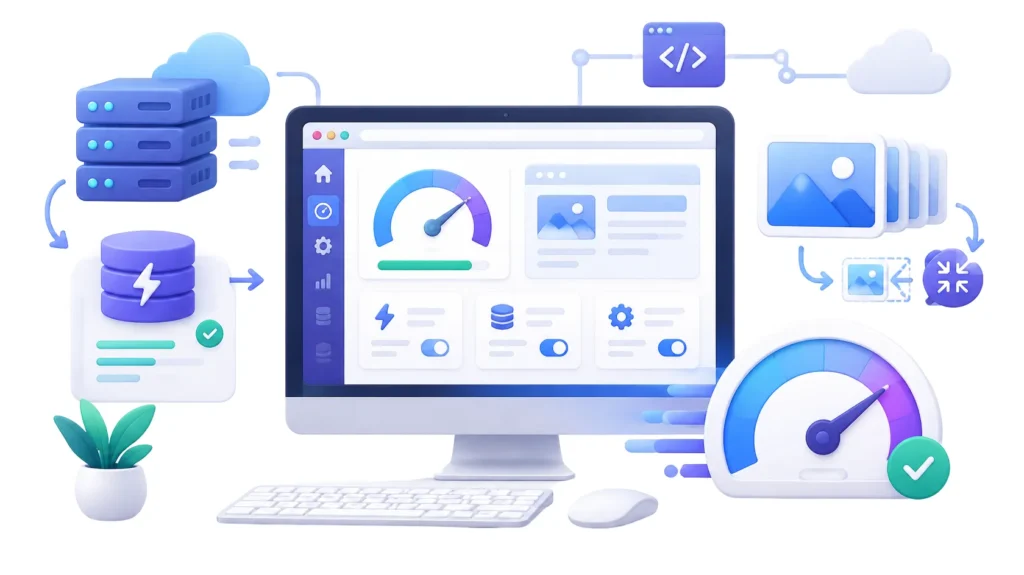
Some popular WordPress image optimization options include:
- ShortPixel.
- Imagify.
- EWWW Image Optimizer.
- Smush.
- Optimole.
Choose one solution that meets your requirements instead of installing several image optimization plugins together.
Use Responsive Images
WordPress supports responsive images through attributes such as srcset and sizes.
These features allow browsers to select an appropriate image size based on the display and layout.
Make sure your theme and image delivery solution support responsive images correctly.
Write Descriptive Image Alt Text
Alt text helps explain an image to search engines and people using screen readers.
For example:
Poor alt text:
image123.jpg
Better alt text:
Website speed optimization dashboard showing performance metrics
Keep alt text descriptive and relevant. Do not fill it with repeated keywords.
Important Image Optimization Tips
- Compress images before uploading.
- Use WebP or AVIF where appropriate.
- Resize oversized images.
- Avoid unnecessary background images.
- Use descriptive filenames.
- Enable lazy loading for suitable below-the-fold images.
- Do not lazy-load important above-the-fold images.
- Keep image quality appropriate for the design.
9. Install a Reliable WordPress Caching Plugin
Caching is one of the most effective techniques for improving WordPress performance.
Normally, WordPress may need to process PHP code and retrieve information from the database whenever a visitor requests a page.
Page caching stores a prepared version of a page so it can be delivered more quickly on future visits.
How Caching Works
Imagine that 100 visitors open the same blog article.
Without effective page caching, WordPress may repeatedly perform similar processing for those requests.
With page caching, the server can reuse a stored version of the page for eligible visitors.
This can reduce server workload and improve loading speed.
Popular WordPress Caching Plugins
Here are some commonly used options:
1. WP Rocket
WP Rocket is a premium WordPress performance plugin that offers caching and several optimization features.
2. LiteSpeed Cache
LiteSpeed Cache provides caching and optimization features. Its server-level caching benefits depend on a compatible LiteSpeed server environment.
3. W3 Total Cache
W3 Total Cache offers several performance optimization options, including caching configurations.
4. WP Super Cache
WP Super Cache is a WordPress caching solution that generates static HTML files for eligible pages.
Which Caching Plugin Should You Choose?
Your choice should depend on your hosting environment and website requirements.
For example, if your hosting provider uses LiteSpeed servers, LiteSpeed Cache may be a suitable option.
If you use another server environment, compare the available caching solutions and their compatibility.
Important: Do not install multiple full-page caching plugins simultaneously. Conflicting cache systems can cause unexpected behavior.
Clear Cache After Making Changes
After updating your website, theme, CSS, or caching settings, clear the relevant caches.
You may need to clear:
- WordPress plugin cache.
- Hosting server cache.
- CDN cache.
- Browser cache.
Always test your website after changing caching settings.
10. Minify CSS, JavaScript, and HTML
CSS, JavaScript, and HTML are important parts of modern websites.
However, unnecessary formatting, unused code, and excessive scripts can increase resource size and processing time.
Minification reduces unnecessary characters from code without changing its intended functionality.
What Is CSS Minification?
CSS controls the visual appearance of your website.
Minification can remove unnecessary spaces, comments, and formatting characters.
This can reduce CSS file size.
What Is JavaScript Minification?
JavaScript controls many interactive features, including:
- Dropdown menus.
- Sliders.
- Forms.
- Popups.
- Interactive buttons.
- Animations.
Minification can reduce file size, but it does not automatically make every script faster.
Reducing unnecessary JavaScript and delaying nonessential scripts may also improve responsiveness.
What Is HTML Minification?
HTML minification removes unnecessary characters from HTML output.
This can reduce the amount of data transferred to visitors.
Combine Minification with Careful Testing
Some WordPress optimization plugins provide automatic CSS and JavaScript minification.
However, enabling every optimization option at once can break website functionality.
For example:
- A mobile menu may stop opening.
- A contact form may stop working.
- A slider may disappear.
- A page builder layout may display incorrectly.
Enable one optimization feature at a time and test your website after every change.
11. Reduce Unnecessary WordPress Plugins
WordPress plugins provide useful functionality, but installing too many unnecessary plugins can make website management more complicated and introduce additional performance overhead.
The number of plugins alone does not determine website speed. Plugin quality, functionality, database queries, and scripts loaded on each page matter more.
Identify Unnecessary Plugins
Review your installed plugins and ask yourself:
- Do I still use this plugin?
- Does my theme already provide this feature?
- Is another plugin providing the same functionality?
- Does this plugin load scripts on every page?
- Is the plugin regularly maintained?
- Does it create unnecessary database activity?
If a plugin is no longer needed, remove it after checking whether it stores important data or settings.
Avoid Duplicate Functionality
For example, you may have:
- Two image optimization plugins.
- Multiple caching plugins.
- Several security plugins performing overlapping tasks.
- More than one SEO plugin.
- Multiple analytics tracking scripts.
Using overlapping solutions can create conflicts.
Keep Plugins Updated
Outdated plugins can introduce compatibility and security problems.
Before updating:
- Create a backup.
- Check compatibility.
- Update in a staging environment when possible.
- Test important website functionality.
A clean WordPress installation is easier to maintain and optimize.
12. Use a Content Delivery Network (CDN)
A Content Delivery Network, commonly known as a CDN, is a network of servers distributed across different geographic locations.
Its purpose is to deliver website resources closer to visitors.
Without a CDN, visitors who are far from your main hosting server may experience additional network delays.
A CDN can help reduce this distance for supported resources.
How a CDN Works
Imagine that your website’s main server is located in Europe, but someone visits from Pakistan.
Without a CDN, the visitor may need to download static files from the original server.
With a properly configured CDN, cached resources may be delivered from a nearby network location.
Benefits of Using a CDN
- Faster delivery of static files.
- Reduced load on the origin server.
- Better handling of traffic spikes.
- Improved geographic content delivery.
- Additional security features with some providers.
Popular CDN Services
Some commonly used CDN solutions include:
Cloudflare: Offers CDN services, DNS management, caching, and security features.
Bunny CDN: Provides content delivery services for website resources.
Amazon CloudFront: Offers a scalable content delivery network.
KeyCDN: Provides CDN infrastructure for static content delivery.
Does Every Website Need a CDN?
Not necessarily.
A small website with a local audience and reliable hosting may perform well without a CDN.
However, if your visitors come from different countries or your website serves many images and static resources, a CDN may be worth considering.
Always test CDN configuration carefully to avoid caching private pages, outdated content, or personalized information.
13. Enable Browser Caching and GZIP Compression
Browser caching allows browsers to store certain website resources locally.
When visitors return to your website, their browsers may reuse previously downloaded resources instead of requesting everything again.
This can reduce repeated downloads and improve the experience for returning visitors.
What Is Browser Caching?
Browser caching stores files such as:
- Images.
- CSS stylesheets.
- JavaScript files.
- Fonts.
- Other static resources.
Your server controls caching behavior through HTTP headers.
For example, files that rarely change can often have longer cache lifetimes, while frequently updated resources may require shorter caching periods or versioned URLs.
What Is GZIP Compression?
GZIP is a compression method that reduces the size of supported text-based files before they are transferred.
These files may include HTML, CSS, and JavaScript.
Smaller files can reduce data transfer and help pages load more efficiently.
What About Brotli?
Brotli is another compression format supported by modern browsers and many hosting environments.
Depending on your server configuration, Brotli may provide better compression than GZIP for some resources.
How to Enable Compression
Many hosting providers enable compression automatically.
You can also check whether your caching plugin or server configuration supports it.
Avoid enabling conflicting compression settings through multiple systems.
After making changes, test your website to ensure that files are being delivered correctly.
14. Improve Your Website’s Mobile Experience
Mobile optimization is not simply about making your website smaller.
It is about ensuring that visitors can comfortably use every important feature on smartphones and tablets.
A desktop layout that looks attractive on a large screen may become difficult to navigate on a small display.
For example, small buttons, oversized images, crowded menus, and horizontal scrolling can make mobile browsing frustrating.
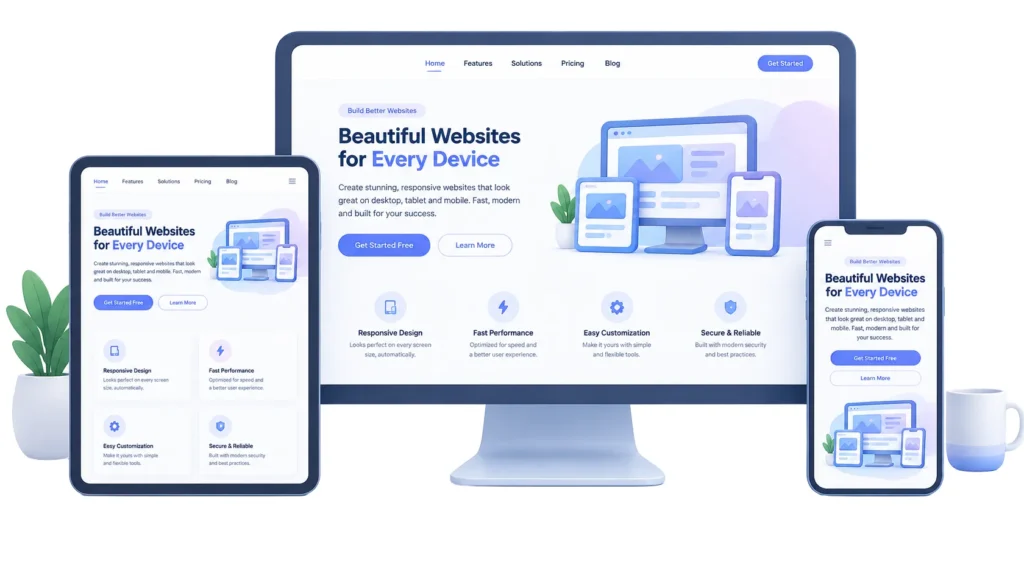
Use Responsive Web Design
Responsive design allows your website layout to adjust according to the visitor’s screen size.
A responsive WordPress theme can automatically adapt:
- Navigation menus.
- Content columns.
- Images.
- Typography.
- Buttons.
- Spacing.
- Sidebars.
Instead of creating completely separate websites for desktop and mobile visitors, responsive design generally uses one website that adapts to different screens.
Make Text Easy to Read
Visitors should not need to zoom in to read your articles.
Follow these typography practices:
- Use readable font sizes.
- Maintain sufficient line spacing.
- Avoid excessively long text lines.
- Use clear heading styles.
- Maintain good contrast between text and background.
- Avoid decorative fonts for long paragraphs.
For many websites, a body font size around 16–18 pixels can provide a comfortable starting point. Test the result on actual mobile screens.
Make Buttons Easy to Tap
Small buttons can be difficult to use on mobile devices.
Make sure that important interactive elements have sufficient size and spacing.
For example:
- Read More buttons.
- Navigation links.
- Contact buttons.
- Search icons.
- Form submission buttons.
- Product purchase buttons.
Avoid placing clickable elements too close together.
Avoid Horizontal Scrolling
Horizontal scrolling is often a sign that a page element is wider than the available screen.
Common causes include:
- Oversized images.
- Fixed-width sections.
- Large tables.
- Wide embedded content.
- Poorly configured page builder columns.
Use responsive layouts and check every important page on smaller screens.
Test Your Mobile Navigation
A mobile navigation menu should be simple and easy to use.
Visitors should quickly find:
- Homepage.
- Main categories.
- Important pages.
- Contact information.
- Search functionality.
Avoid complicated navigation structures with too many nested menu items.
15. Optimize Fonts and Third-Party Scripts
Fonts and external scripts can affect website loading and responsiveness.
Many websites load fonts from external services, analytics tools, advertising networks, chat widgets, social media integrations, and other providers.
Although these features can be useful, loading too many external resources may increase page complexity.
Optimize Web Fonts
Consider the following font optimization practices:
- Use fewer font families.
- Limit unnecessary font weights.
- Prefer efficient font formats such as WOFF2.
- Load only the character subsets you need.
- Use font-display settings appropriately.
- Consider hosting fonts locally when licensing and maintenance allow it.
Preloading a font can help when that font is genuinely important for above-the-fold content.
However, preloading too many resources can compete with other important files.
Reduce Third-Party Scripts
Review all external scripts on your website.
Examples include:
- Analytics tracking.
- Advertising scripts.
- Live chat widgets.
- Social media embeds.
- Marketing pixels.
- External review widgets.
Ask whether every script is necessary.
If a feature is not providing meaningful value, consider removing it.
Load nonessential scripts later where possible, but do not delay essential functionality or tracking that must run at a specific time.
16. Improve WordPress Database Performance
WordPress stores much of its website information in a database.
This includes posts, pages, settings, comments, plugin data, and other information.
Over time, your database may accumulate unnecessary records.
These records may include:
- Old post revisions.
- Expired transient data.
- Spam comments.
- Trashed content.
- Unused plugin records.
- Temporary information.
Cleaning unnecessary data can make database maintenance easier.
Remove Unnecessary Post Revisions
WordPress can save multiple revisions of posts and pages.
This feature is useful because it allows you to restore previous versions.
However, websites with a large amount of content may accumulate many revisions.
You can limit the number of revisions retained, but always consider your editing workflow before changing this setting.
Clean Spam and Trashed Comments
Review your comment section regularly.
Remove spam and permanently delete comments that are no longer needed.
Clean Expired Transients
Transient data is temporary information stored in the WordPress database.
Expired transient records can sometimes accumulate and may be cleaned using appropriate database maintenance tools.
Back Up Before Database Optimization
Database cleanup should always be performed carefully.
Before using any database optimization tool:
- Create a complete backup.
- Confirm that the backup is usable.
- Review the cleanup options.
- Avoid deleting unfamiliar records manually.
- Test the website after cleanup.
Do not expect database cleanup alone to transform a poorly optimized website. It is only one part of a complete performance strategy.
17. Use Lazy Loading for Images and Videos
Lazy loading is a technique that delays loading certain resources until they are close to appearing in the visitor’s viewport.
For example, imagine that an article contains 15 images.
If a visitor only sees the first two images when opening the page, loading every image immediately may waste resources.
Lazy loading can help by delaying images that are further down the page.
Benefits of Lazy Loading
- Reduces initial page loading work.
- Avoids downloading some images unnecessarily.
- Can reduce initial data transfer.
- Helps long articles load more efficiently.
Enable Lazy Loading in WordPress
Modern WordPress versions support native lazy loading for appropriate images.
Some optimization plugins also provide lazy-loading features for images, videos, and other content.
Important Lazy Loading Mistake to Avoid
Do not lazy-load images that are immediately visible when the page opens, especially the main LCP image.
Doing so can delay the most important visual content.
Use lazy loading for suitable below-the-fold images while prioritizing important content near the top of the page.
18. Optimize Your Website’s Homepage
Your homepage is often one of the most visited pages on your website.
It may contain logos, banners, featured images, navigation menus, article cards, animations, and other elements.
A heavy homepage can create a poor first impression.
Keep the Homepage Simple
Avoid adding unnecessary design elements.
Focus on the information visitors need most.
For example, a professional blog homepage may include:
- A clear header.
- Simple navigation.
- A useful introduction.
- Featured articles.
- Relevant categories.
- A clean footer.
Optimize Featured Images
Homepage banners and featured images can be large.
Resize them appropriately and use modern image formats.
Avoid uploading unnecessarily high-resolution images.
Limit Homepage Content
You do not need to display every published article on the homepage.
Show a reasonable number of useful posts and provide category or archive links for visitors who want to explore more.
Reduce Heavy Sliders
Large sliders with multiple images can increase loading requirements.
If a slider is not essential, consider replacing it with one optimized featured section.
A simple, well-designed homepage is often easier to navigate and optimize.
19. Improve Navigation and Mobile User Experience
A fast website should also be easy to navigate.
Visitors should not need to search through complicated menus to find the information they want.
Create a Clear Navigation Structure
Organize your website into meaningful categories.
For example, a technology blog might have:
- WordPress.
- SEO.
- Website Design.
- Digital Marketing.
- Website Performance.
Keep navigation labels simple and understandable.
Use Internal Links
Internal links connect related pages within your website.
For example, an article about WordPress performance could link to another article about image optimization or WordPress security.
Internal links help visitors discover relevant information and help search engines understand the relationships between pages.
Use descriptive anchor text rather than generic phrases such as “click here” wherever possible.
Improve Mobile Forms
Forms should be simple and easy to complete.
Consider:
- Using appropriate input types.
- Keeping labels visible.
- Reducing unnecessary fields.
- Providing clear error messages.
- Making submit buttons easy to tap.
Avoid asking visitors for information you do not actually need.
Maintain Visual Consistency
Use consistent:
- Colors.
- Fonts.
- Button styles.
- Heading sizes.
- Spacing.
- Navigation patterns.
A consistent design makes your website easier to understand and use.
20. Common Website Speed Optimization Mistakes
Website owners sometimes make optimization changes without understanding their effects.
Here are some common mistakes to avoid.
Mistake 1: Installing Too Many Optimization Plugins
Installing several plugins that perform similar functions can create conflicts.
Choose a suitable performance solution and understand what each feature does.
Mistake 2: Focusing Only on Desktop Scores
A website may perform well on desktop but poorly on mobile.
Always test both versions.
Mistake 3: Uploading Large Images
Large images can increase page weight unnecessarily.
Resize and compress images before uploading them.
Mistake 4: Lazy Loading Every Image
Lazy loading the main visible image can delay LCP.
Prioritize important above-the-fold content.
Mistake 5: Enabling Every Optimization Setting
Some CSS and JavaScript optimization options can break website functionality.
Enable changes gradually and test after each change.
Mistake 6: Ignoring Real User Data
A single PageSpeed Insights test does not represent every visitor’s experience.
Monitor real-world performance through Google Search Console and other suitable monitoring tools.
Mistake 7: Using Too Many Animations
Excessive animations can make websites feel distracting and may increase rendering work.
Use animations only when they improve the experience.
Mistake 8: Forgetting Website Backups
Performance optimization can sometimes cause unexpected problems.
Create backups before major changes.
Mistake 9: Chasing a Perfect Performance Score
A perfect score is not the ultimate purpose of optimization.
Focus on real usability, important performance problems, and meaningful improvements.
21. A Practical WordPress Speed Optimization Checklist
If you use WordPress, this checklist can help you organize your optimization work.
Hosting and Server
- Choose reliable WordPress hosting.
- Use supported PHP versions.
- Enable HTTPS.
- Check server response time.
- Confirm database performance.
- Enable suitable server-level caching.
WordPress Theme
- Use a lightweight theme.
- Remove unnecessary design elements.
- Check responsive layouts.
- Keep the theme updated.
- Test compatibility with plugins.
Images and Media
- Compress images before uploading.
- Use WebP or AVIF where appropriate.
- Resize oversized images.
- Add descriptive alt text.
- Use responsive images.
- Enable suitable lazy loading.
- Prioritize the main featured image.
Caching and Code
- Install one suitable caching solution.
- Configure page caching.
- Enable browser caching.
- Minify CSS where appropriate.
- Optimize JavaScript carefully.
- Enable supported compression.
- Remove unused scripts.
Mobile Optimization
- Test the website on smartphones.
- Use readable typography.
- Make buttons easy to tap.
- Fix horizontal scrolling.
- Optimize mobile navigation.
- Test forms and menus.
- Check images on smaller screens.
SEO and Monitoring
- Test pages with PageSpeed Insights.
- Review Google Search Console.
- Monitor Core Web Vitals.
- Maintain proper heading structure.
- Use relevant internal links.
- Check mobile content availability.
- Keep important pages accessible to Googlebot.
Following this checklist can help you build a more systematic optimization process instead of making random changes.
22. How to Monitor Website Performance
Website optimization should not be treated as a one-time activity.
Your website may become slower over time because of new plugins, additional content, larger images, advertisements, scripts, or increased traffic.
Regular monitoring helps identify these problems before they become serious.
Test Important Pages Regularly
Do not test only your homepage.
Check important pages such as:
- Homepage.
- Blog articles.
- Category pages.
- Contact page.
- Product pages.
- Landing pages.
Different pages may have different performance problems.
Monitor Core Web Vitals
Use Google Search Console to review real-world performance.
Pay attention to LCP, INP, and CLS.
If a group of URLs receives a poor status, investigate the common elements affecting those pages.
Keep a Performance Record
You can maintain a simple spreadsheet containing:
| Page | Mobile Score | Desktop Score | Main Issue |
|---|---|---|---|
| Homepage | Record result | Record result | Identify issue |
| Blog Article 1 | Record result | Record result | Identify issue |
| Category Page | Record result | Record result | Identify issue |
These are example tracking fields, not actual performance results.
Record your results before and after major changes so you can understand whether your optimizations are helping.
Re-Test After Major Updates
Test your website after:
- Installing a new plugin.
- Updating your theme.
- Changing your homepage design.
- Adding a large banner.
- Installing a new tracking tool.
- Changing caching settings.
- Moving to another hosting provider.
Regular testing helps maintain a consistently good experience.
23. Frequently Asked Questions
1. How can I improve website speed in WordPress?
You can improve WordPress website speed by choosing reliable hosting, using a lightweight theme, compressing images, enabling caching, optimizing CSS and JavaScript, reducing unnecessary plugins, and using a CDN where appropriate.
Start by testing your website with Google PageSpeed Insights to identify the biggest problems.
2. What is the best plugin for WordPress speed optimization?
There is no single best plugin for every WordPress website.
WP Rocket, LiteSpeed Cache, W3 Total Cache, and WP Super Cache are popular options.
The right choice depends on your hosting environment, website requirements, and compatibility.
3. Does website speed affect Google rankings?
Website speed and page experience are relevant to Google’s search systems.
Core Web Vitals are used as part of Google’s broader page experience considerations.
However, good performance scores do not guarantee higher rankings. Relevant, helpful content and many other SEO factors remain important.
4. What is a good website loading speed?
For Core Web Vitals, Google recommends an LCP of 2.5 seconds or less, an INP of 200 milliseconds or less, and a CLS score of 0.1 or less.
These are useful performance targets, but overall website experience matters too.
5. How can I make my website mobile-friendly?
Use a responsive WordPress theme, readable fonts, properly sized images, simple navigation, touch-friendly buttons, and mobile-friendly forms.
Test your website on different screen sizes to identify layout problems.
6. What is the difference between caching and a CDN?
Caching stores reusable website resources or prepared page versions to reduce repeated processing and downloads.
A CDN distributes supported resources through servers in different geographic locations to deliver them closer to visitors.
Both technologies can improve performance, but they solve different problems.
7. Does image compression improve website speed?
Yes. Image compression reduces file sizes, which can decrease the amount of data visitors need to download.
Using appropriately sized WebP or AVIF images can be particularly helpful.
8. How often should I test my website speed?
Test your website after major updates and periodically throughout the year.
You should also monitor Core Web Vitals in Google Search Console to identify real-world performance problems.
9. Can too many WordPress plugins slow down a website?
Yes, some plugins can increase loading time by adding scripts, stylesheets, database queries, or background processing.
However, plugin quality and functionality matter more than the total number of installed plugins.
10. Is a 100 PageSpeed Insights score necessary?
No. A perfect score is not required for good search performance.
Focus on good Core Web Vitals, fast loading, responsive interactions, visual stability, and a useful browsing experience.
11. Which image format is best for website speed?
WebP and AVIF are useful modern formats for many website images.
The best option depends on image quality, browser support, and your WordPress image optimization setup.
12. What are Core Web Vitals?
Core Web Vitals are Google’s metrics for evaluating loading performance, interactivity, and visual stability.
They include Largest Contentful Paint, Interaction to Next Paint, and Cumulative Layout Shift.
24. Final Thoughts
Improving website speed and mobile experience is an important part of maintaining a successful website in 2027.
Visitors expect websites to load quickly, display correctly, and respond smoothly across different devices. A slow or poorly designed website can create frustration and make it difficult for people to access valuable information.
The good news is that you can improve website performance through practical steps without completely rebuilding your website.
Start with reliable hosting, a lightweight WordPress theme, image compression, effective caching, and mobile-friendly design. Then investigate unnecessary scripts, database performance, CDN configuration, and Core Web Vitals.
Remember that website speed optimization is an ongoing process. Test your website regularly, review real-world performance data, and make improvements based on actual problems rather than blindly following performance scores.
Most importantly, always prioritize your visitors.
A fast website should not only satisfy technical performance requirements but also provide a smooth, accessible, and enjoyable experience.
By applying the strategies explained in this guide, you can create a faster WordPress website, improve mobile usability, support your SEO efforts, and provide visitors with a better browsing experience throughout 2027 and beyond.
Keep optimizing, keep testing, and make your website better with every update.